How to open a password-protected PST file
- Last updated: Aug 24, 2026
- Email Search & Viewing
Outlook versions: Outlook for Microsoft 365, Outlook 2024, 2021, 2019, 2016, and 2013
Need to open a password-protected Outlook PST file? The right method depends on whether you know the current password. If you know the password, you can remove the password protection in Microsoft Outlook. If you have forgotten the password, you can still open a locked PST file without a password using PST Viewer and access your emails and other Outlook data.
If you need to preserve the original PST file, choose an access method that does not modify the source file. This is particularly important for forensic, compliance, or e-discovery purposes.
What to do if you forgot your PST password
Microsoft Outlook does not provide a native password recovery feature. Specialized PST password-removal or recovery utilities may offer options for removing the password or recovering access to a protected PST file.
If the original PST file must be preserved, avoid modifying it unnecessarily. Opening a PST in Outlook or using password-removal utilities may modify the file or its metadata. For forensic, compliance, or other sensitive situations, create a copy of the original PST before attempting password recovery or removal.
If you only need to view the contents of a password-protected PST file, PST Viewer can open and display PST data without modifying the source file. This makes a PST Viewer a suitable option when you need to inspect emails and other Outlook data while keeping the original PST unchanged. Note: Use the software only to access PST files that you are authorized to access.
How to remove a PST password in Outlook
The simplest way to remove a password from a PST file is to use Microsoft Outlook if you know the current password. Follow these steps:
- Open Outlook: Launch Microsoft Outlook on your computer.
- Open Account Settings: Go to File > Account Settings > Account Settings....
- Open the Data Files tab: In the Account Settings window, select the Data Files tab.
- Select the PST file: Select the PST file from which you want to remove the password and click Settings....
- Change the password: On the General tab, click Change Password... and enter the current password when prompted.
- Leave the new password blank: Leave the New password and Verify password fields blank, then click OK.
- Confirm the change: Confirm the change if prompted. Outlook will remove password protection from the PST file.
How to open a password-protected PST without Outlook
If you forgot the password for an Outlook Data File (.pst), you can use PST Walker Viewer to open and view password-protected PST files without Outlook. The tool lets you access messages, contacts, calendar items, tasks, notes, and other Outlook data even when you do not know the password.
- Close Outlook: Close Microsoft Outlook and all other mail-enabled applications that may use your Outlook mailbox.
- Launch PST Viewer: Download and run PST Walker Viewer on your computer.
- Open the PST file: Browse to the .pst file you want to open and click Open.
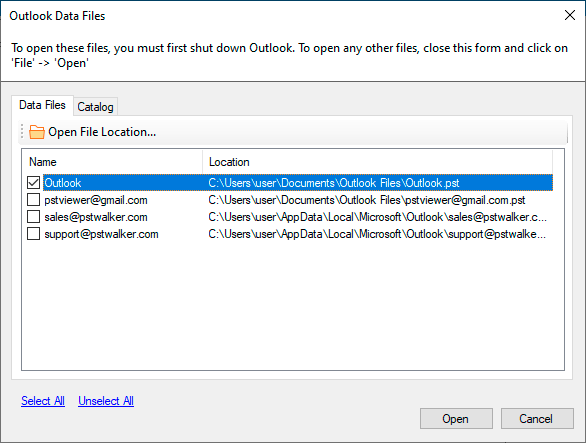
- Browse the PST contents: Select a folder in the All Folders pane to preview its items, including messages, contacts, appointments, tasks, notes, and journal entries.
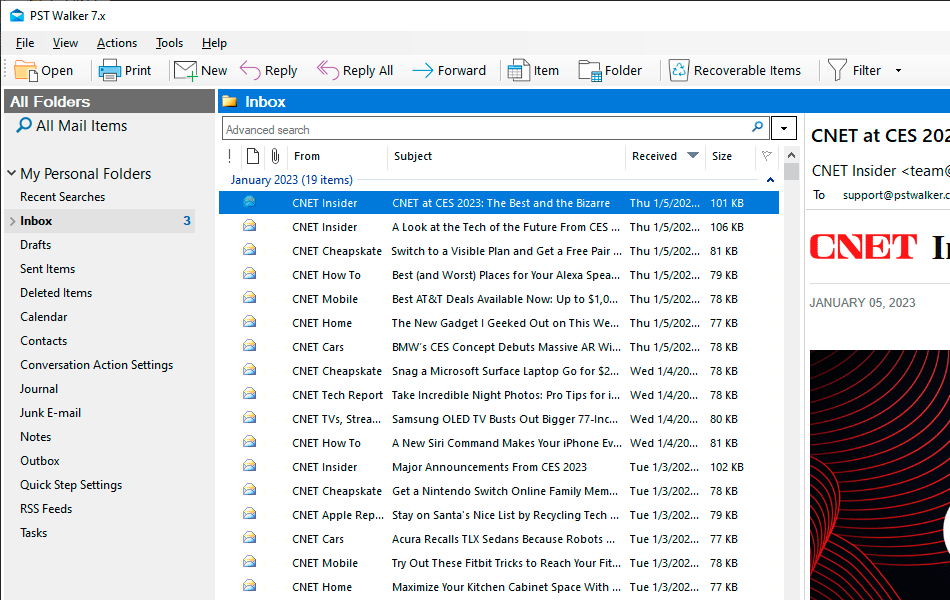
Once you open the PST file in PST Walker Viewer, you can browse and search its contents without Outlook. You can search for specific messages and other Outlook items, preview their contents, print messages, and export data to other formats.
PST Walker Viewer can also be useful for forensic investigations, compliance reviews, e-discovery, and other situations where you need to inspect or analyze Outlook data. You can export selected messages or other items for further analysis, reporting, or archiving while keeping the original PST file unchanged.
How secure is a PST Password?
You can set a password for an Outlook Data File (.pst) to restrict access to its contents through Outlook. However, a PST password should not be considered a strong security measure because it does not encrypt the data stored in the PST file.
Important: A PST password is used as an access-control mechanism within Outlook rather than as an encryption key. It does not encrypt or decrypt the messages, contacts, calendar items, tasks, and other data stored in the PST file. As a result, password protection alone does not provide strong protection against someone who has access to the PST file itself.
PST passwords also use a relatively weak verification mechanism rather than modern password-hashing or encryption algorithms. Therefore, they should not be relied upon as the primary security measure for sensitive Outlook data.
Security Note: To provide stronger protection for Outlook data, restrict access to the computer and the PST file using Windows user accounts and appropriate file-system permissions. For sensitive data, consider using encryption at the operating-system or storage level.
Conclusion
PST password protection can restrict access to a PST file through Outlook, but it does not encrypt the data stored in the file. If you know the password, you can remove it in Outlook. If you forgot the password, Outlook does not provide a password recovery function, but a PST viewer can let you access and inspect the contents without opening the file in Outlook.
Frequently Asked Questions
See Also
This guide provides step-by-step instructions on how to use PST Walker Viewer. Learn how to navigate the interface, open and search for emails, extract attachments, and more.
Search multiple .pst and .ost files without Outlook
Learn how to search through multiple .pst and .ost files without using Outlook. With Boolean search, built-in search filters, and regular expressions, you can easily locate essential emails, contacts, and more within multiple Outlook data files.
Convert Outlook items from Outlook Data Files (.pst and .ost) to EML format, making them compatible with Thunderbird, Apple Mail, Gmail, Windows Mail, and others.