How to convert OST to PST
- Last updated: Aug 25, 2026
- Email Conversion & Migration
Outlook versions: Outlook for Microsoft 365, Outlook 2024, 2021, 2019, 2016, and 2013
Converting an OST file to PST format allows you to back up, migrate, or access Outlook mailbox data offline. The best conversion method depends on your Outlook profile status, the condition of the OST file, and whether you need to convert the entire mailbox or selected data.
If your Outlook profile is active and connected to the original mailbox, you can export mailbox data to a PST file using Outlook’s built-in Import and Export wizard. If the OST file is disconnected, oversized, or corrupted, manual export may not be possible. In this case, you can download OST to PST converter tool to extract your mailbox data directly from the OST file without requiring an active Exchange Server connection. This approach can preserve the folder structure, attachments, and email headers during conversion. For batch conversion and automated workflows, command-line tools can also be combined with PowerShell or other scripting methods.
Which method should you use?
The right method depends on whether the OST file is accessible and how you need to process its data. Outlook is suitable when the original mailbox and profile are accessible, while dedicated converters process OST files directly and provide more options for recovery, selective export, and batch processing. Command-line tools are best suited for automated or multi-file conversion workflows.
| Your situation | Recommended method |
|---|---|
| The OST is accessible through your Outlook profile | Method 1 - Outlook |
| You need to convert an entire OST to PST | Method 2 - OST to PST Converter |
| You need to selectively export specific items, folders, or mailboxes | Method 3 - PST Walker |
| You need scripting or command-line processing | Method 4 - Command-Line Conversion |
Important: Methods 2–4 can process the OST file independently of the original Outlook profile. However, Microsoft Outlook must be installed to create the resulting PST file.
Online OST to PST conversion
You can convert OST to PST online using a web-based converter. However, OST files and the resulting PST files are often large, so uploading and downloading them can take considerable time. Online converters typically process all data in the uploaded file, while desktop applications give you more control over what to export.
Important: Your Outlook Data File (.pst and .ost) may contain sensitive information beyond the messages and folders you normally access, including private messages, deleted folders or hard-deleted emails that may still be recoverable, Outlook Rules and Alerts, Contacts, Calendar items and meeting details, Tasks, Notes, journal entries, and other mailbox metadata.
Uploading the entire file to an online service may therefore expose more data than you intend to convert. For confidential or business email data, consider whether uploading the source file to a third-party server is appropriate for your needs.
Method 1 - Outlook
If the OST is accessible through the original Outlook profile, you can use Microsoft Outlook to create a PST file. In Cached Exchange Mode, Outlook exports only the data currently stored in the local cache. Exchange and Microsoft 365 accounts may be configured to synchronize only a limited period of mail, so the resulting PST may not contain the entire mailbox.
To include older data, make sure the required mailbox content is synchronized before exporting, or turn off Cached Exchange Mode where appropriate. See Microsoft's instructions for exporting email, contacts, and calendar to a PST file for the steps to create a PST file from Outlook.
Best for: OST files that are accessible through Outlook when you need to create a PST using Microsoft's built-in export functionality.
Method 2 - OST to PST Converter
If you need to convert an entire OST file or multiple OST files to PST, you can use a dedicated OST to PST converter tool.
- Close Microsoft Outlook and any other applications that may be accessing your Outlook mailbox.
- Download and run OST to PST Converter on your computer.
- Browse to the OST file or folder containing the OST files you want to convert, and click Open.
- Select the destination folder for the converted PST files.
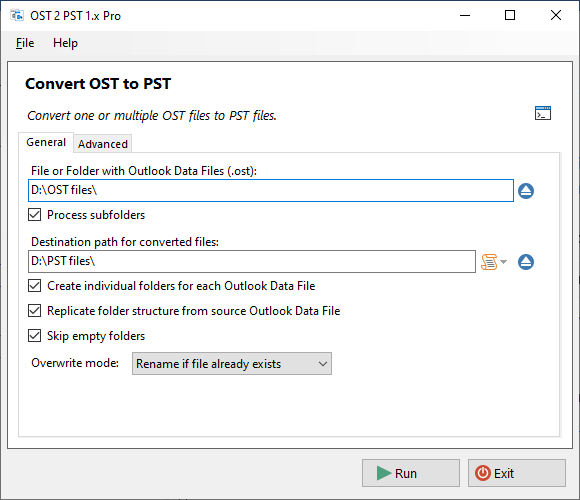
- Set the export parameters and click Run.
- Wait for the conversion to complete.
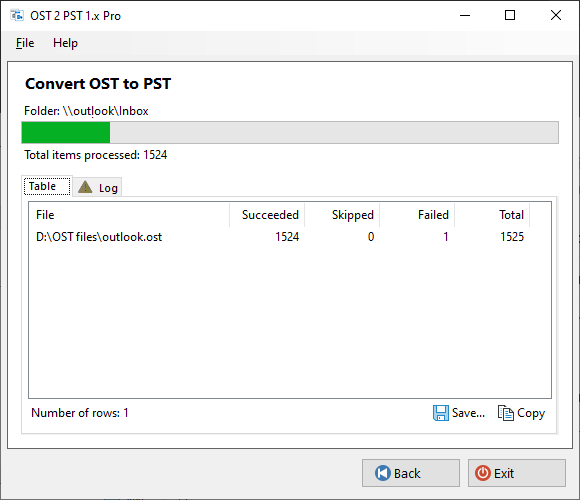
- Review the conversion summary and log for any issues or errors.
Method 3 - PST Walker
If you need to selectively export specific Outlook items, folders, or entire mailboxes from an OST file to PST, you can use PST Walker. It allows you to select which data to export and supports export in different formats.
- Close Microsoft Outlook and any other applications that may be accessing your Outlook mailbox.
- Download and run PST Walker on your computer.
- Browse to the OST file you want to convert, and click Open.
- Browse and preview the Outlook items, including email messages, calendar items, contacts, and tasks.
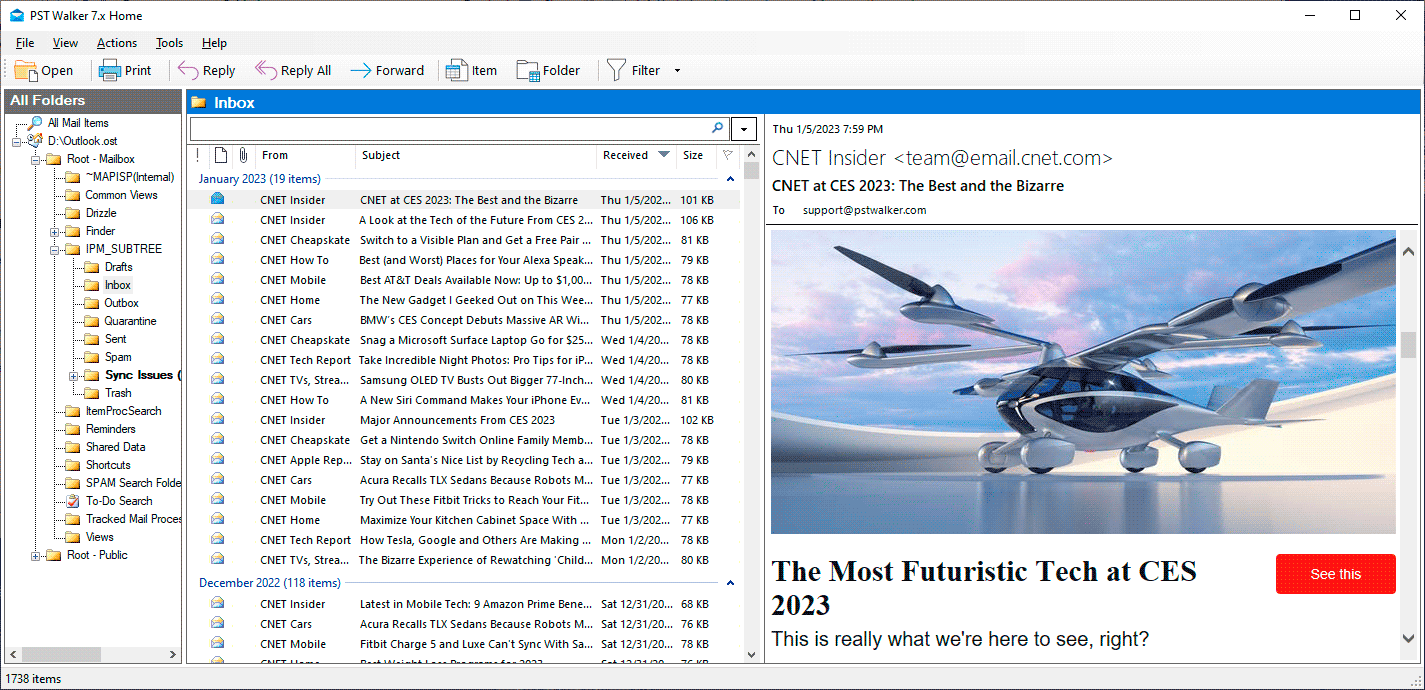
- Select the items you want to export and go to File > Export.
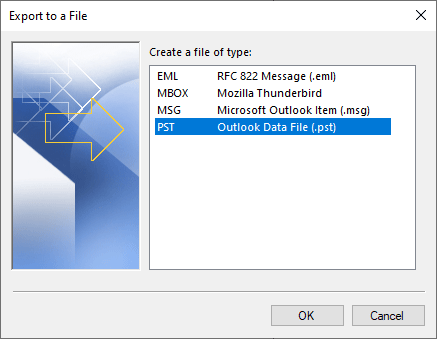
- Select PST - Outlook Data File as the file format and click OK.
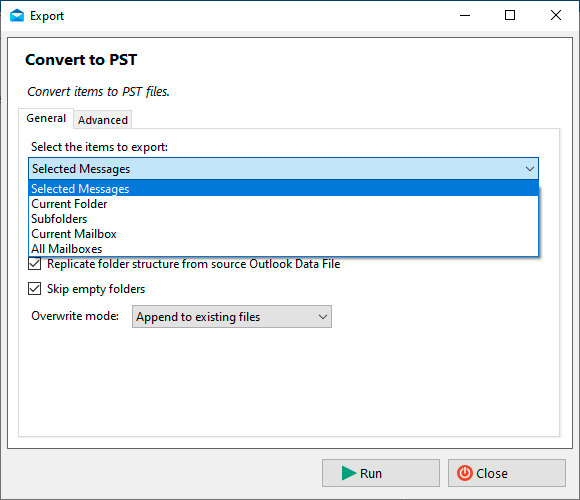
- Select the data you want to export, such as Selected Messages, Current Folder, Subfolders, Current Mailbox, or All Mailboxes.
- Choose the destination folder and customize the additional export settings if needed.
- Click Run and wait for the export to complete.
Method 4 - Command-Line Conversion
PSTScan Pro and OST to PST Converter provide command-line interfaces for automating OST to PST conversion and batch processing. You can run them directly from Command Prompt or automate them with PowerShell, Task Scheduler, or other scripting tools.
Example 1: Searching .ost mailboxes and exporting items to .pst files
cd "C:\Program Files (x86)\PSTWalker Software\PstScanPro"
$OSTFiles = @("c:\a.ost", "c:\b.ost")
foreach ($OST in $OSTFiles){
   .\pstscanpro.exe convert pst -f "$OST" -p "D:\PST-Queries" --% -q:"from:(=bobbymoore@contoso.com OR ""bobby moore"")"
}
This example searches c:\a.ost and c:\b.ost mailboxes for items in which the e-mail address equals bobbymoore@contoso.com OR sender name contains bobby moore. The search results are exported to D:\PST-Queries\a.pst and D:\PST-Queries\b.pst
To match an entire phrase, the search string must be enclosed in quotes. All special characters, including quotes, should be escaped using an escape sequence prefixed with a backslash \.
For example:
-q "\"bobby moore\""
Alternatively, for quotes, you may also use double quotes:
-q """bobby moore"""
When running native commands from PowerShell, the arguments are first parsed by PowerShell. Beginning in PowerShell 3.0, you can use the stop-parsing (--%) token to stop PowerShell from interpreting input as PowerShell commands or expressions.
Example 2: Converting all user's .ost files to .pst files
cd C:\Program Files (x86)\PSTWalker Software\PstScanPro
pstscanpro.exe convert pst -f c:\users\*.ost -p "D:\PST files" --srcfolders
This example convert all .ost files located in the c:\users folder to .pst files to the D:\PST files directory.
What data is preserved when converting OST to PST
Converting an OST to a PST does not simply change the file extension. Instead, it extracts supported Outlook data (email, contacts, tasks, calendar items, and other Outlook data) into a new PST file. Exchange-specific metadata and local cache synchronization details are omitted, as they are not needed in a standalone PST.
- The conversion process creates a new PST copy of your email, contacts, and calendar data. Your original OST file remains completely unchanged and fully accessible.
- When emails are exported, their attachments are included in the resulting PST file.
- Certain metadata is not exported to the PST file, including folder properties (views, permissions, and AutoArchive settings), message rules, and blocked senders lists. For information about recovering Outlook rules, see Recover disappeared Rules and Alerts in Outlook
Are there any limits when converting from OST to PST?
There is no limit on the number of OST files that can be converted or on the size of individual files. However, some license plans may restrict batch conversion. The ability to process large files depends on available system resources and the application used to open the resulting PST files.
Frequently Asked Questions
See Also
This guide provides step-by-step instructions on how to use PST Walker Viewer. Learn how to navigate the interface, open and search for emails, extract attachments, and more.
Recover disappeared Rules and Alerts in Outlook
If Outlook Rules and Alerts have disappeared, you may still be able to recover them from a PST or OST file. This guide explains where rules are stored and how to find, export, and import them back into Outlook.
Recovering emails from an OST file
There are several tools available that can help you recover data from an OST file. They can help you recover important data from your OST file and save it in various file formats for future use.